Showing posts with label Excel - How To's. Show all posts

22 May, 2010

How To Hide Formulas in Excel

If you don't want your users to look at what formulas you have used in your Excel sheet, here is how to do it.

  1. Right-Click the cell which contains your formula.
  2. Go to Format Cells, go to the Protection Tab
  3. Check the 'Hidden' check box, Press OK
  4. Now got to Tools » Protection » Protect Sheet. Give a password, again Press Ok
  5. Select the cell which contains your formula - You will observe that the formula is not displayed in the address bar
Here is what happens before and after this procedure

20 May, 2010

How To Create a New List in Excel

By default the following five lists are available in Microsoft Excel

1. Days of week(short)
2. Days of week (Long)
3. Months (short)
4. Months (Long)
5. Direction

But if you want to add more lists you have to do it manually. Here is how:

How To Import Colors unavailable in Excel

By default Excel provides a lot of colour options. But sometimes Microsoft releases templates having entirely new set of colours, generally as the heading colours.
If you want these colours to be added in your Excel sheet here is the trick:

How To Add New Date Format

By deafult Excel provides a lots of date format.But still some of the "local" date formats may not be available. Here is how to add a new date format:

How To Find Duplicate Rows in Excel

There are two methods of removing duplicate entries from rows in Excel. The first method involves the use of a formula while the second one uses filtering.


Method 1.

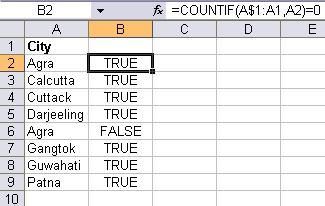
Let us suppose that your data is in the A column. Copy this formula in the B column
=COUNTIF(A$1:A1,A2)=0
This formula will check from A1 to the current cell for any Duplicates. It will return TRUE if no Duplicate is there and FALSE if Duplicate is found as shown here


Now you can filter all the FALSE entries and you will get the unique records.

Method 1(a).

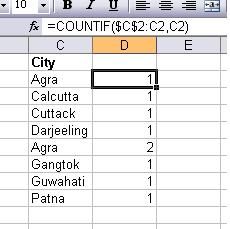
Here is another version of the above formula:
=COUNTIF(A$1:A1,A2)

This will do the same job as above but will return 1 if no Duplicate is there and FALSE if Duplicate is found as shown here


Method 2.

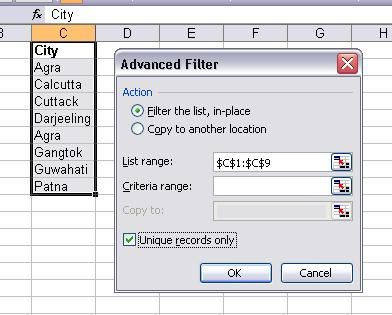
This method involves filtering of data. The steps are as follows:

Step 1. Select the column containing data including headings.
Step 2. Go to DATA menu Filter >> Advanced Filter
Step 3. In the Advanced Filter dialog box, make sure that the Filter the list, in place is selected.
Step 4. Check the Unique records only check box, and then click OK.


Results: You will see reults like this :

You can see that the Duplicate row Row(6) is not shown in the results. You can copy the results and paste them elsewhere.

19 May, 2010

How To Automatically Number Rows

You have a excel file having a long list of entries. You want the rows to automatically get numbered each time a new entry is there(because you have fade up of editing again & again).
So here is the solution:

15 May, 2010

How To Lock Specific Cells in Excel

When one tries to lock cells in Excel, all the cells are locked by default.
What if you want to lock only a given number of cells without affecting the other cells. Here is the procedure:-

How To Find Number Of Entries Greater Than A Given Value

We will use the "COUNTIF" function for this. Here is the definition of the "COUNTIF" function according to MS Office Help file:

COUNTIF - counts the number of cells within a given range(table,row or column) that meet the given criteria."


Thus COUNTIF will give you the number of cells which are greater than, less than or equal to(or a combination of these conditions) a number specified by you.

You can use COUNTIF to find number of entries greater or less  than a given value.
Here is the Step by step instructions on how to use "COUNTIF" function:-

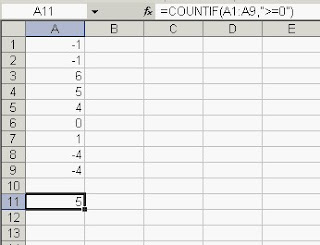
Step 1. Suppose you have the given set of numbers.


Step 2. Now in a blank cell put this formula:=COUNTIF(A1:A9,">=0")

This formula will return the number of cells from the range "A1" to "A9" which are greater than 0.


Step 3. Hit the Enter key


Step 4. You should now get the correct answer; if you are following the
above numbers the answer will be "5"