01 October, 2010

Create Multiple Folders Using File Names & Move File To Them

In my previous post I wrote about how you can generate folders from file names using WinRAR.
However there is an even simpler way to accomplish this task - FoldMonkey.
Using FoldMonkey you can create folders from file names and copy or move your files to these new folders.

This is the FoldMonkey main screen: [click the image for enlarged view]


To create folders from the file names follow the following precedure:

1. Select (check) the "Archive File" option.
2. Select (check) the "Create Folder" option.
3. Select "Add Old File Name Without .Extension" from the drop down menu next to the entry box.
4. Uncheck the "Folder Path" option.
5. Select "Move File To The Above Created Folder".
6. Click the "Scan Once Only" button.

The folders will be created. [click the image for enlarged view]


Get FoldMonkey Now

20 September, 2010

Create Multiple Folders Using Filenames

If you want to create multiple folders using filenames here is a simple way. You will however require WinRAR for this method. If you don't have WinRAR you can download a trial copy from here.
Here is how to do it:

11 August, 2010

Play Synonym Game

You can test your knowledge of Synonyms in the form of a game.
Sadlier-Oxford.com page provides a cool way to improve your word power.
You will be shown a word, it will remain fix on the screen. Other words will show and disappear. You will have to choose from them the word which you think is the closest in meaning of the 'fixed' word and click on the round button on the left side of thescreen. If your guess is right you will be awarded 200 points, else 100 points will be deducted. A green bar on the right will tell you how fast you were.

07 July, 2010

New Indian Railways Website

If you have ever visited the Indian Railways website than you already know how frustrating it is; it throws a hundred pop-ups at the visitor and is damn! slow. Also it sometimes just hang and lacks information like route maps.
Here is a new Indian railways website - http://indiarailinfo.com/. This website is not affiliated to Indian railways. It provides information in a simple manner and doesn't show any pop-ups. Here are some screenshots to show what it actually looks like:

1. This is the home page - you can see there are no images, hence the page loads faster. To get information about any train use the text boxes.
Here I used the train number '2955' Mumbai Central-Jaipur Express  as an example.


All the information regarding the train will be shown. The departure time, number of halts, platform number, and route length in kilometers.
Apart from this general information you can also get the route map. Click on the 'Route Map/Live Status' tab.

This is the route map of the train - 2955. You may click the image for an enlarged view.

Click on the 'Fares and Seats' tab to get the information about fares and seat availability.
You will be shown the complete information for the train.

This website is far better than the Indian Railways website. The information is presented in a simple and easy to find manner. You don't have to click several times or wait for long to get any information.
I hope you will also find it useful. If you have something to say please feel free to comment.

05 July, 2010

How To Use Google Fonts in Blogger Title and Posts

Now you can add Google Custom Fonts to your Blogger titles and posts. Google fonts are available to everyone via the Google Fonts API. Follow these steps to add Google Fonts to your blog.


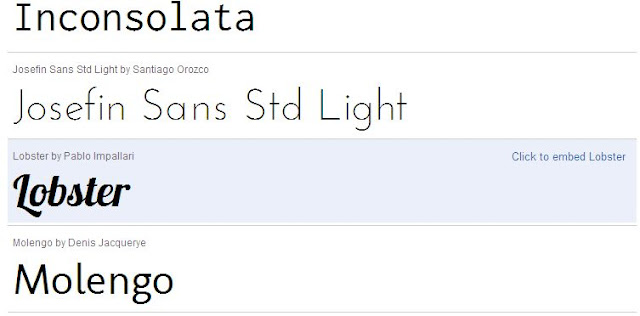
1. Go to the Google Fonts directory. You will find fonts like this:


2. Click the link next to the desired font 'Click to embed {Fontname}', where Fontname is the name of font of your choice.

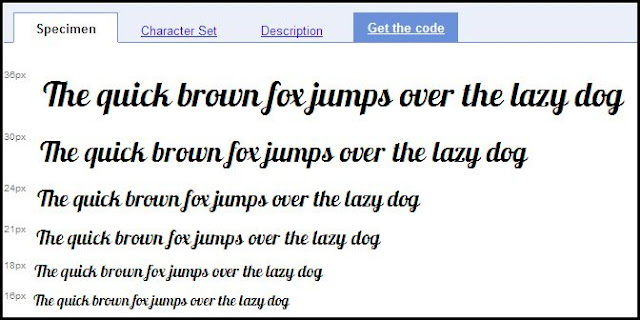
3. You will be taken to the next screen, like this:


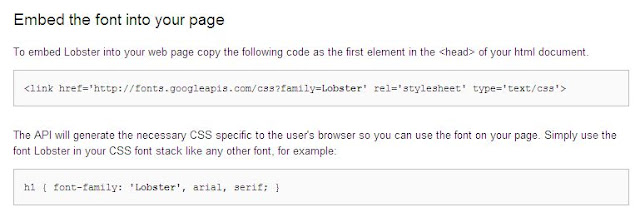
4. Go to the 'Get the Code' tab. You will be given code for the specified font like this:


5. Copy the code, it will look like this, here I am using the 'Lobster' font.

<link href='http://fonts.googleapis.com/css?family=Lobster'
rel='stylesheet' type='text/css'/>
Note that the last element has been changed from >  to />. this way your CSS will be parsed correctly and will not give errors.

6. Now go to Blogger > Design > Edit HTML tab. Search for </head> tag.
7. Paste the code from Google API above the </head> code.
8. This way you have inserted Google fonts in your blog. But still you have to define which portion of CSS uses the custom fonts.
This is done by defining styles for each element of the blog like header title, post title etc.

Here are the main CSS elements that you should know to define the fonts styling.

Blog Header Title                                       #header h1 {font-family:FontName;}
Header description                                     .description {font-family:FontName;}
Sidebar Title                                               .sidebar h2 {font-family:FontName;}
Post Title                                                    .post h3 {font-family:FontName;}
Post Body Fonts                                         .post {font-family:FontName;}
Footer Title                                                 #footer h2 {font-family:FontName;}
Whole Template                                          body {font-family:FontName;}
Change the Fontname to your desired font . Thus you have installed Google fonts in your blog.

Google All The Way : List of All Google Websites

Google, we can't imagine our day without this word. Google is present in various online service businesses and delivering an unprecedented value to the users.
Here is list of all the Google websites:

02 July, 2010

How To Generate 'UnCrackable' Passwords

Since we are now spending more time online and logging in on several sites it has become necessary to have such strong passwords that cannot be cracked. Passwords must be really difficult to guess but easy to remember by the user.
A little insight and HowSecureIsMyPassword.net can help us a lot in this matter. HowSecureIsMyPassword.net can tell you how secure your password is and how long it will take to crack it.
Using this website's data I calculated the time required to crack some (standard) passwords. The result is shown in the table:

s. no.passwordtime to crack
1abcdefgh~ 5 Hours
2abcdefghij~ 163 days
3ABCDEFGHIJ~ 163 days
4Abcdefghij~ 458 Years
5Abcdefgh12~ 2000 Years
6Abcde@1234~ 17000 Years


The conclusion is :

1. Password strength increases with increase in number of characters.
2. Password strength remains same if the same letters are used in UPPERCASE or lower case.
3. Notice that the addition of a single capital letter 'A' increased the password strength from 163 days to 458 years.
4. In the fifth case two alphabets were replaced by two numerals which resulted in increase of password strength by nearly 5 times.
5 Adding only one special character increased the password strength 8 times.

A password with 10 characters having a mix of numerals, alphabets and special characters will take 17000 years to be cracked.
Taking in account all these factors we can say that a really strong (and nearly uncrackable-assuming that human life is shorter than 17000 years ) password is one which has:

1. at least 10 characters
2. a mix of lower case and CAPITAL letters, numerals and special characters.
3. it should not have a complete word-a random mix of word is the best.
4. a replacement of word with numerals like small case L with numeral '1' or zero (0) with alphabet (o) may increase the password strength several folds.
5. it must be easy to remember but difficult to guess.